Features
Site audit
A site audit in Serpel crawls your website, runs 94 checks on what it finds and condenses the findings into an audit score from 0 to 100. You start it with Start crawl on Issues, or let it run every Monday with the weekly crawl. This guide explains what the crawler does, how to read the results, how the score works and what a crawl costs.
What does a site audit check?
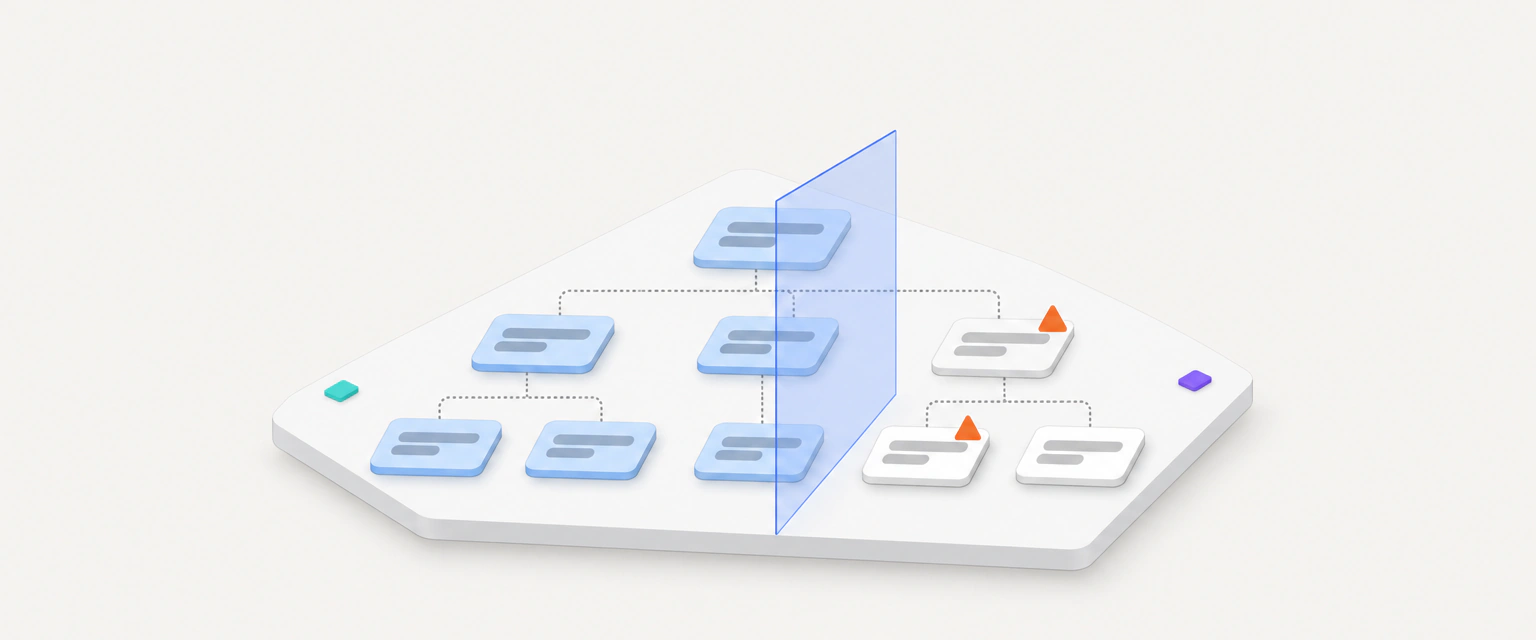
A site audit is a crawl of your website followed by an analysis. SerpelBot, the Serpel crawler, starts at your start URL, follows your internal links and reads every page it reaches. Serpel then applies 94 checks to what it found: 11 errors, 43 warnings and 40 notices in 18 categories, among them “Redirects”, “Title and description”, “Linking”, “Structured data” and “Core Web Vitals”. The check reference explains every check and its fix, and the site audit feature page gives the short overview.
The crawler collects facts about each URL, such as status code, title, canonical tag, links and response time. The checks judge those facts. A finding is an issue type, for example “Internal URL returns a 4xx status code”, together with the URLs it affects.
- checks per crawl
- 94
- check categories
- 18
- pages per crawl at most
- 1,000
- Depends on your plan
- per 20 pages crawled
- 1 credit
How does a crawl run?
Every crawl runs through the same stages. The order matters for the page limit: links are followed first, and the sitemap and hreflang alternates are added afterwards.
Read robots.txt
SerpelBot fetches your robots.txt, applies the SerpelBot group or the
Start*group and notes any Crawl-delay.Follow links
It starts at your start URL and follows internal links. Every redirect hop and every error page counts as a page.
Add sitemap URLs
When the links run out, it adds URLs that only your sitemap lists, then hreflang alternates on your domain.
Render if needed
Pages that arrive almost empty are rendered in a browser, depending on your JavaScript rendering setting.
Check links and vitals
It checks external links and embedded resources, then measures Core Web Vitals for your most important pages.
Score and save
Serpel runs the checks, calculates the audit score and stores the result.
Result
When the results are saved, Serpel also re-checks tasks that you linked to an issue and queues a recalculation of your opportunities (at most once an hour).
How do you start a crawl?
Open Issues.
In the sidebar, open Issues under Site audit. The Start crawl button sits at the top right of Issues and Crawls. On an empty page it reads Start first crawl. You need the editor or owner role in the project. Viewers can read results but can’t start crawls.
Choose the page limit.
In the Crawl website dialog, set Maximum number of pages. It starts at the Pages per crawl value of your project, which is 100 by default, and it can’t exceed the limit of your plan. The dialog shows the estimated maximum price in credits.
Start and follow the crawl.
Click Start crawl. A Website crawl is running banner shows the progress, and Cancel stops the crawl. Only one crawl runs per project at a time. If you start another one, Serpel tells you that a crawl is already running.
Read the result.
When the crawl has finished, Issues shows the new result. The audit score appears under Crawls, in the comparison view and on the project overview.
The page limit counts every URL the crawler fetches, so redirects and error pages use it up as well. The limit per crawl depends on your plan:
| Plan | Pages per crawl | Credits reserved at the maximum |
|---|---|---|
| No subscription | 250 | 13 credits |
| Starter | 1,000 | 50 credits |
| Pro | 1,000 | 50 credits |
Set the default for new crawls and for the weekly crawl under Settings → General → Pages per crawl. The other plan limits are described in credits and billing.
What does the crawler do on your website?
Which URLs does it visit?
The crawler stays on your domain. It treats your domain with and without www as internal. Other subdomains count as external links and are only checked, not crawled. It follows links from page to page unless a page carries a nofollow robots directive, so a page that no crawled page links to and that your sitemap doesn’t list is never found.
Once the links are used up, the crawler reads the sitemaps that your robots.txt names, or /sitemap.xml if it names none, and visits the URLs that only the sitemap lists. Hreflang alternates on your domain come last. If the page limit ends the crawl earlier, those URLs are never visited, so raise the limit when your sitemap lists pages you want checked. How the crawler paces its requests and what it does with your robots.txt is described on the SerpelBot page.
How does it treat redirects, errors and soft 404s?
A redirect response is saved as its own URL together with its target, and the crawler then visits the target. Error pages and unreachable URLs are saved with their error. The crawler also tests the start URL over HTTP and HTTPS to see whether HTTP redirects to HTTPS.
To catch pages that answer with status 200 but behave like error pages, the crawler requests one made-up address per host and compares your pages with the answer. The result is a probability. You see it in the Soft 404 check section of the page detail, and Serpel states there that it is not a definite finding.
When does it render JavaScript?
By default the crawler reads the HTML that your server delivers. Some websites build their text and links in the browser, so the delivered HTML is nearly empty. In the default mode, Serpel renders a page in a real browser when it has fewer than 50 words and shows a sign of a JavaScript application. You choose the mode under Settings → General → JavaScript rendering.
| Setting | What the crawler does |
|---|---|
| Automatic for empty pages | Renders only pages that are served almost empty and checks all other pages as served HTML. This is the default. |
| Always render | Renders every page in a browser and sees what visitors see. More thorough, but slower. |
| Never render | Checks only the served HTML. Content that appears only in the browser stays invisible. |
A crawl renders at most 200 pages. Pages has a Rendered column, hidden by default, and the field Checked as in the page detail shows Rendered with JavaScript for rendered pages. A notice on Issues tells you when the rendering service wasn’t available, when the render limit was reached or when single pages failed to render, and it names the reason.
How does it measure Core Web Vitals?
After the crawl, Serpel asks Google PageSpeed Insights to measure your start URL and the most linked indexable pages, 5 pages in total, on mobile and on desktop. It reports Largest Contentful Paint (good up to 2.5 s, poor above 4 s), Interaction to Next Paint (good up to 200 ms, poor above 500 ms) and Cumulative Layout Shift (good up to 0.1, poor above 0.25). Field data comes from real visitors over the last 28 days, lab data is a single measurement, and Interaction to Next Paint exists only as field data.
If PageSpeed Insights can’t be reached, the crawl still completes. The Core Web Vitals section on Issues then says that the measurement failed, and Serpel tries again with the next crawl.
How does it check external links?
The crawler checks the external links on your pages and the images, scripts and stylesheets they load. It sends HEAD requests and confirms a failure with a GET request. A crawl checks at most 400 targets and stops after 120 seconds, so on large websites some targets are skipped.
How do you read the audit results?
The sidebar section Site audit holds the result pages. They all show one crawl, by default the latest completed one.
| Page | What it shows |
|---|---|
| Issues | The findings of one crawl, with tiles for Errors, Warnings and Notices. Each issue shows how many pages it affects and how many crawls in a row it has been present. Site-wide issues carry a Website label. The Core Web Vitals section sits at the bottom. |
| Issue detail | One issue type with Why it matters, How to fix it and the Affected URLs. Site-wide issues list Occurrences instead. A click on a URL opens its page detail. |
| Pages | Every URL of a crawl with status, title, words, response time and issue count. The views All pages, Error pages, Redirects and With issues narrow the list. More columns such as click depth, incoming links and HTML size are hidden by default. |
| Page detail | The facts of one URL, its Issues, the sections Rendering, Structured data, Soft 404 check and hreflang where they apply, the Inbound links (the first 200) and the Outbound links (the first 300). |
| Crawls | The 100 latest crawls with status, score, pages, errors, warnings and duration, plus the Crawl history chart for audit score, errors and pages. |
| Comparison | Two crawls side by side: audit score before and after, and the issues that are New, Resolved or Changed count. |
Issues marked Based on a heuristic are hints, not certain errors. Check them before you change anything on your website.
How is the audit score calculated?
The audit score is Serpel’s own measure, not a Google metric. Every crawl starts with 100 points. For each issue type that the crawl finds, Serpel deducts a fixed base amount that depends on the severity, plus an amount that grows with the number of affected locations compared with the number of HTML pages. It deducts per issue type, not per URL. Site-wide issues, such as a missing sitemap, count as if they affected every page.
Audit score=100 points−Base deduction−Share deduction
- 100 points
- Every crawl starts here.
- Base deduction
- Each issue type found costs a fixed amount for its severity, however few pages it affects.
- Share deduction
- Affected locations divided by HTML pages, at most 1, multiplied by a severity weight. Site-wide issues count as a full share.
| Severity | Base deduction | Added at full share | Total per issue type |
|---|---|---|---|
| Error | 6 points | up to 14 points | 6 to 20 points |
| Warning | 2 points | up to 6 points | 2 to 8 points |
| Notice | 0.5 points | up to 1.5 points | 0.5 to 2 points |
Take a crawl with 200 HTML pages. “Internal URL returns a 4xx status code” affects 20 pages and costs 7.4 points. “Meta description is missing” affects 100 pages and costs 5 points. “No XML sitemap found” is site-wide and costs 2 points. Together that is 14.4 points, so the score is 86. Serpel rounds the result and keeps it between 0 and 100.
- 0–49Critical
- More than 50 points deducted.
- 50–74Needs work
- About 26 to 50 points deducted.
- 75–89Good
- About 11 to 25 points deducted.
- 90–100Excellent
- Up to about 10 points deducted.
The CLI prints these labels next to the score. In the dashboard, the ring beside the score is green from 90, amber from 70 and red below that. All checks count, including heuristic ones, and the score is not comparable between crawls with very different page limits.
How do you compare two crawls?
On Issues, click Compare to compare the shown crawl with the one before it. The button appears once a second crawl has finished. On the comparison page, Before and After let you pick other completed crawls.
Serpel matches issue types. New lists types that the older crawl didn’t find, Resolved lists types that the newer crawl no longer finds, and Changed count lists types with more or fewer affected locations. If the two crawls checked a different number of pages, the page says so, because part of a difference can come from that.
How does the weekly crawl work?
Turn on Weekly crawl under Settings → Monitoring. Serpel then starts a crawl every Monday and compares it with the previous one. The start time is the hour you set for monitoring in the same section, in Europe/Berlin time. The crawl uses your Pages per crawl value, capped by your plan. The monitoring and reports guide describes the schedule in detail.
A scheduled crawl needs the same credits as a manual one. If the workspace can’t cover the reserved maximum on that Monday, Serpel doesn’t start the crawl, emails the workspace owner once and checks again during that Monday. If the credits are still missing, the crawl is skipped until the next Monday. A project above the project limit of your plan is paused without an email.
What does a crawl cost?
A crawl costs 1 credit per started block of 20 pages. When the crawl starts, Serpel reserves the maximum for your page limit. When it ends, you are charged only for the pages it delivered, never more than the reserved amount. A crawl that fails, that you cancel or that delivers no pages costs nothing. Rendering, link checks and Core Web Vitals add no credits. Here is what Serpel reserves at different limits:
| Maximum number of pages | Credits reserved |
|---|---|
| 100 | 5 credits |
| 250 | 13 credits |
| 500 | 25 credits |
| 1,000 | 50 credits |
Serpel counts every URL in the result, including redirects, error pages and URLs that robots.txt blocks. A crawl of 21 pages therefore costs the same as a crawl of 40. The full price list and the rules for reservations are in credits and billing.
How long does Serpel keep crawl data, and how do you export it?
Serpel keeps the pages and links of the last 5 crawls of each project. For older crawls, Pages and the page detail are empty. Their score, issue counts and issues stay, so older results and comparisons keep working.
To export issues, press Ctrl+K or Cmd+K on Issues and choose Download issues as CSV or Download issues as JSON. On Pages, open Options and choose Export as CSV. The history and exports guide lists every export.
How do you run a site audit from the CLI, API or MCP?
The CLI and the REST API cover starting and reading crawls, comparing them and reading Core Web Vitals. The CLI is the quickest way to start a crawl in CI, and the API exposes the same data as JSON. Over MCP, an agent can only read the issues of the latest crawl. It can’t start a crawl.
| Task | CLI | API | MCP |
|---|---|---|---|
| Start a crawl | serpel crawl start --project <id> --wait | POST /projects/{id}/crawls (audit:write) | Not available |
| Read issues | serpel audit issues --project <id> | GET /projects/{id}/issues | get_crawl_issues |
| One issue with URLs | serpel audit issue <code> --project <id> | GET /projects/{id}/issues/{code} | Not available |
| Compare crawls | serpel crawl compare --project <id> | GET /projects/{id}/crawls/compare | Not available |
| Pages and page detail | serpel crawl pages --crawl <id> | GET /crawls/{id}/pages | Not available |
| Core Web Vitals | serpel audit web-vitals <crawlId> | GET /crawls/{id}/web-vitals | Not available |
The read endpoints need the scope audit:read, and get_crawl_issues needs it too. Set up an agent with the Claude Code guide. To act on a finding, serpel tasks create --project <id> --issue <code> turns an issue into a task, and Serpel re-checks the task after every crawl.
serpel crawl start --project <id> --max-pages 200 --wait
serpel audit issues --project <id> --severity error
serpel crawl compare --project <id>serpel projects update <id> --crawl-schedule weekly --render-mode auto --max-pages 500What can go wrong with a crawl?
| What you see | What it means | What to do |
|---|---|---|
| The crawl ends with no pages and the issue “robots.txt responds with a server error” | Your robots.txt answered with a 5xx status or couldn’t be fetched. SerpelBot then treats the whole website as blocked. | Make /robots.txt answer with status 200, or 404 if you have none, and crawl again. The SerpelBot page has the details. |
| The issue “Start URL blocked by robots.txt” | A Disallow rule for SerpelBot, or for all crawlers if you have no SerpelBot group, covers your start URL. | Change the rule as shown on the SerpelBot page. |
| Many 403 or 429 responses, or timeouts | A firewall or bot protection rejects the crawler, or your server answers too slowly. | Allow the user agent SerpelBot, or add a Crawl-delay line to slow the crawl down. |
| Pages are missing from Pages | They aren’t linked from crawled pages or listed in the sitemap, they sit on another subdomain, or the page limit ended the crawl first. | Link them, add them to the sitemap or raise Pages per crawl. serpel crawl show <crawlId> marks a crawl that hit its limit. |
| Content that you see in the browser is missing | The page builds its content with JavaScript and rendering is off. | Set JavaScript rendering to Always render. |
| The crawl fails at once | The workspace doesn’t have enough credits for the reserved maximum. Nothing is charged. | Lower Maximum number of pages or add credits in credits and billing. |
Where to go next
Updated 5 Nov 2026
See also
- Every site audit check explainedAll 94 checks of the Serpel site audit with severity, why each issue matters and how to fix it, grouped into 18 categories.
- SerpelBotSerpelBot is the Serpel crawler: its user agent, how it follows robots.txt, how fast it crawls and how you allow or block it.
- Site auditSerpel runs a technical SEO audit with 94 checks, JavaScript rendering and Core Web Vitals, and explains every issue and its fix.
- OpportunitiesOpportunities in Serpel are SEO recommendations from 8 fixed rules, with real thresholds, an impact score and no AI guesswork.