Features
Codebase scan
The codebase scan reads the routes and metadata of your Next.js project with the Serpel CLI and sends them to Serpel as a snapshot. Serpel compares every route with your crawled pages and your Search Console data and flags where code and live site disagree. The scan never uploads your source code, environment files or secrets, and it costs no credits.
What is the codebase scan?
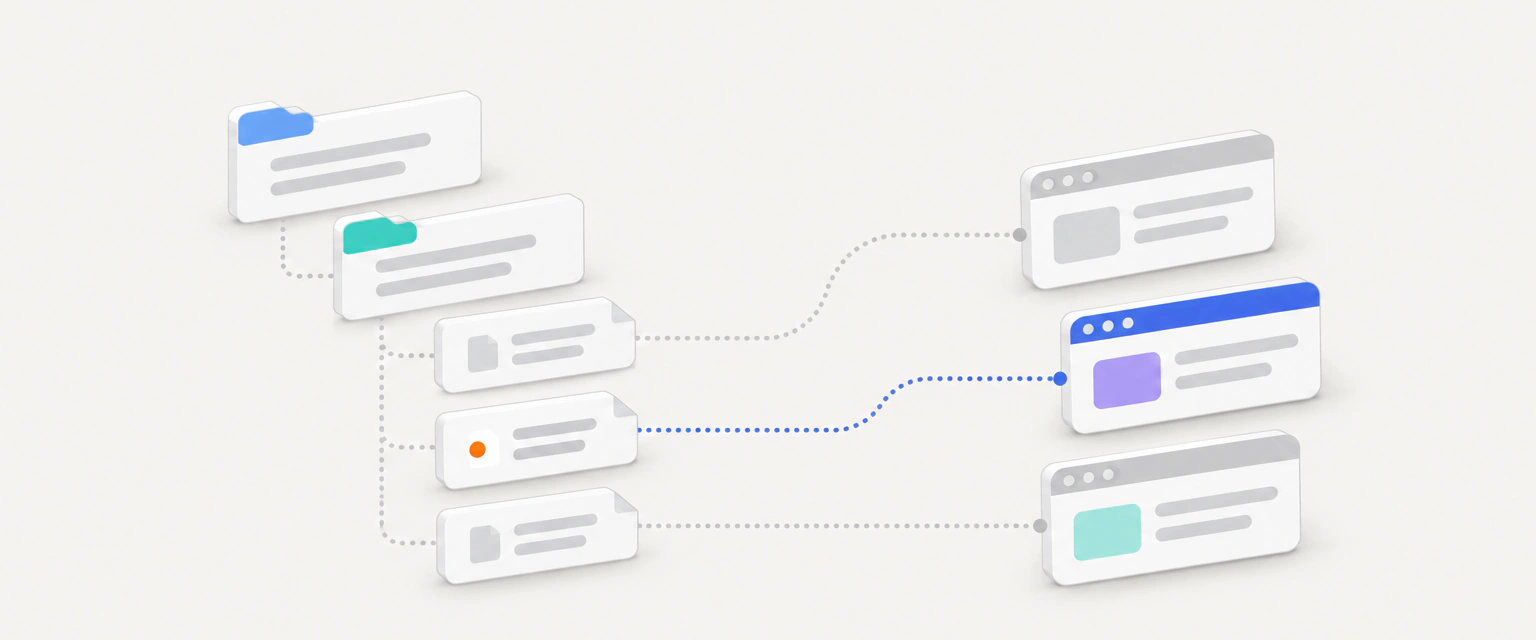
A site audit sees your website from the outside. The codebase scan adds the inside view: which routes your code defines, which title and description each one sets, and in which file. Serpel puts both views side by side and tells you, for example, that a route exists in code but no page is live, or that the live title isn’t the one your code sets. There is no GitHub connection. You run the scan yourself with the CLI, on your machine or in CI.
Scan
On your machineserpel scanreads routes, metadata and the sitemap of your Next.js project.Confirm
The CLI lists what it will send and asks for your confirmation.
Upload
The snapshot goes to your project. It is free.
Process
A background job maps every route to your crawled pages and search data.
Review
The Codebase page shows routes and mismatches. Opportunities use them.
Only Next.js projects are supported, with the App Router, the Pages Router or both, also under src. Metadata from code is read for App Router routes only, so for Pages Router routes the title and description come from the build output. For any other project, or a folder without next in its package.json, the scan collects no routes and says so.
What does the scan read and what does it never send?
| Part of the snapshot | What it contains |
|---|---|
| Routes | The URL path of every page route, whether it is dynamic, and the path of the file that defines it, for example app/blog/[slug]/page.tsx. |
| Metadata from code | Title, description, canonical and robots values of App Router routes, but only when your metadata export uses plain text. Dynamic values stay empty. Pages Router routes have no metadata from code. |
| Metadata from the build | If a .next or out folder exists: title, description, canonical, robots, headings, internal links, structured data types and word count from the built HTML. |
| Page texts | Only with --include-text: at most 500 characters per page, and only for routes with build output. |
| Sitemap and robots | The URLs of your sitemap.xml and the rules of your robots.txt, if they are files in the project. Generated files such as app/sitemap.ts or app/robots.ts are not evaluated. |
| Project | Package name and description, framework version, README headings and the Git branch, commit and whether you have uncommitted changes. |
To find those values, the scan opens page and layout files. It sends the values, not the code around them. It never reads environment files, key and certificate files, credentials, node_modules, .git, binary files, symbolic links, files over 2 MB and anything your .gitignore excludes. The built HTML in .next or out is the one exception, because that is where the final titles and headings are. Values that look like keys or passwords are removed before the upload, and the server rejects a snapshot that still contains one.
How do you run a codebase scan?
Install the CLI and sign in.
See the CLI page.
serpel auth loginopens a browser approval, so you don’t copy a token.Run a dry run.
serpel scan --dry-runin the project folder. In a monorepo, name the folder that holds the Next.js app, for exampleapps/web.Scan and upload.
serpel scan --project <id>prints the summary and asks “Send snapshot with N routes (size) to project …? [y/N]”. Add--waitto follow the processing.Open the Codebase page.
It sits under Site audit in the project sidebar. The routes appear once the job has finished.
serpel auth login
serpel scan --dry-run
serpel scan apps/web --dry-run --out snapshot.json
serpel scan --project "$PROJECT_ID" --wait
serpel scan apps/web --project "$PROJECT_ID" --yes --include-text
The summary lists the files read and skipped, the routes, how many of them have metadata from the build or from code, the sitemap, the robots rules, the Git state and the size. Run the scan after next build if you can: then the Build metadata source and the headings, links and word counts are filled in, and Pages Router routes get their title and description. Without a terminal the CLI can’t ask, and --yes skips the question.
How do you run the scan in CI?
Create an API token under Settings → API tokens with the scopes codebase:write and codebase:read, restrict it to the project and store it as the secret SERPEL_TOKEN. The CLI reads that variable on every run. The workflow below builds the site on every push to main and uploads a snapshot afterwards.
name: Serpel codebase scan
on:
  push:
    branches: [main]
jobs:
  scan:
    runs-on: ubuntu-latest
    steps:
      - uses: actions/checkout@v4
      - uses: actions/setup-node@v4
        with:
          node-version: 22
      - name: Build the site
        run: npm ci && npm run build
      - name: Install the Serpel CLI
        run: npm install -g @serpel/cli
      - name: Upload the codebase snapshot
        env:
          SERPEL_TOKEN: ${{ secrets.SERPEL_TOKEN }}
          SERPEL_PROJECT_ID: ${{ vars.SERPEL_PROJECT_ID }}
        run: serpel scan --project "$SERPEL_PROJECT_ID" --yes --wait --timeout 300
Each upload counts against the daily limit, so scan the branch that you deploy and not every pull request. If the limit is reached, the CLI says so and exits with code 7. Run the scan again later.
What limits apply to the codebase scan?
- routes per snapshot
- 2,000
- Further routes are left out.
- per snapshot
- 2 MB
- Of JSON, after trimming.
- uploads per project and day
- 20
- In any 24 hours.
- snapshots kept per project
- 20
- The oldest are removed.
A snapshot holds at most 5,000 sitemap URLs. The scan stops after 200,000 files in the folder. If a snapshot is over 2 MB, the CLI first drops page texts, then halves the internal links, and tells you what it removed. If it is still too large, it stops and suggests a smaller folder. Overlong texts and lists are shortened, and the CLI reports each cut as a warning.
What does the Codebase page show?
Five cards open the page: Routes, Of which dynamic (routes with placeholders such as [slug]), Mapped live, Without metadata and Deviations. Below them, the Routes table has the views All, Static, Dynamic, With deviation, No live page and No metadata, and the columns Route, File, Type, Metadata source (Code, Build or None), Title, Mapping, Live pages, Impressions and Deviations. Description, Pages with impressions and Words are hidden by default. Latest snapshots lists your uploads with their status (Received, Processed or Failed) and the change since the previous one: “N new, M removed, K changed”.
The mapping compares each route with the latest completed crawl and with the Search Console data of the 28 days before processing. The statuses are Live, No live page, Dynamic, matched, Dynamic, no match and Not indexable. Without a crawl and without Search Console data, every route says Not checked. Start a crawl, then scan again: the comparison happens on the next scan.
Route without live page
- Your code defines the route, but neither the crawl nor Search Console knows a page at that path.
- Check whether it is deployed, linked from other pages and open to crawlers.
Live page without route
- A crawled page matches no route in the scanned project.
- It may come from another app, a CMS or an old deployment. Check which project serves it.
The two other deviations are Title in code differs from live and Description in code differs from live. They apply to static routes only, and a text counts as different only if the live text doesn’t contain the text from your code, ignoring case and extra spaces. A site that appends “· Your brand” to every title therefore doesn’t trigger them.
How does the codebase scan feed opportunities?
Every processed snapshot queues a recalculation of opportunities (at most once an hour per project). An opportunity that is about a page names the matching route when there is one, and “Codebase snapshot” appears among its data sources, so you know which file to open. The rule for missing pages checks your routes before it suggests a new page, and the rule for technical blockers shows the route behind a blocked URL. The scan itself is free, and so is the recalculation.
How do you use the codebase scan from the CLI, API or MCP?
Uploading needs the scope codebase:write, reading needs codebase:read. The REST API has POST /projects/{id}/codebase-snapshots for the upload, GET /projects/{id}/codebase-snapshots for the list and GET /codebase-snapshots/{id} for one snapshot with its routes, mapping, deviations and the diff to the previous one. A daily-limit error comes back as HTTP 429. The processing job appears as Codebase snapshot under History (see history and exports).
curl "https://serpel.app/api/v1/projects/$PROJECT_ID/codebase-snapshots?limit=5" \
  -H "Authorization: Bearer $SERPEL_TOKEN"

curl https://serpel.app/api/v1/codebase-snapshots/$SNAPSHOT_ID \
  -H "Authorization: Bearer $SERPEL_TOKEN"
For AI assistants, the MCP tool get_codebase_overview summarises the latest snapshot: framework, router, Git commit, routes without metadata, routes without a live page, live pages without a route, the deviations and the change since the previous snapshot, at most 25 entries per list. It returns no snapshot until you have run serpel scan. Setup is on the MCP page for Claude Code.
Where to go next
Updated 5 Nov 2026
See also
- Site auditSite audit in Serpel: how a crawl runs, how to read issues and pages, how the audit score works and what a crawl costs in credits.
- OpportunitiesOpportunities in Serpel are SEO recommendations from 8 fixed rules, with real thresholds, an impact score and no AI guesswork.
- Search dataHow search data works in Serpel: connect Google Search Console and Bing Webmaster Tools, read clicks and impressions, check the index and export CSV.
- Serpel CLI referenceReference for the serpel command line: install, sign-in, every command group, JSON output, exit codes and a GitHub Actions example.