How does Google crawl, render and index JavaScript?
Google describes three phases for JavaScript web apps: crawling, rendering and indexing. Googlebot fetches a URL after it checks robots.txt. Every page that returns a 200 status code is queued for rendering, and once Google’s resources allow, a headless Chromium renders the page and runs the JavaScript. Google then uses the rendered HTML to index the page and parses it again for links to crawl.
Older guides talk about “two waves of indexing”. Google’s current documentation describes the three phases above and a render queue instead. A page may stay in that queue for a few seconds, but it can take longer. Client-side content can therefore be indexed, just later than content that is already in the HTML.
Four rules follow from how that pipeline works:
- Blocked files are not rendered. If
robots.txtblocks a script or the page, Google does not run that JavaScript. - noindex can end the process early. When Google sees
noindexin the HTML it may skip rendering, so a script that removes the tag later may never run. - Only real links are discovered. Google can only find links that are
<a>elements with anhrefattribute. - HTML metadata wins. JavaScript can set the title, description and canonical, but HTML is preferred, and a canonical set by script must match the one in the HTML.
Which rendering strategy is best for JavaScript SEO?
The rendering strategy decides what the first response contains. Google copes with all of them, but many other crawlers do not. The table follows the definitions in web.dev’s guide to rendering on the web.
| Strategy | HTML in the first response | Risk for crawlers | Good fit |
|---|---|---|---|
| Client-side rendering (CSR) | An empty shell and script tags | High: content exists only after rendering, and a crawler that does not render sees nothing | Logged-in apps and dashboards |
| Server-side rendering (SSR) | Complete HTML for every request | Low: the cost is server time and a slower first byte | Personalised or fast-changing pages |
| Static rendering (SSG) | Complete HTML built once at build time | Lowest: changing content needs a rebuild | Docs, blogs and marketing pages |
| Incremental static regeneration (ISR) | Prebuilt HTML that the server refreshes in the background, as Next.js describes it | Low: content can be briefly stale | Large catalogues of mostly stable pages |
| Dynamic rendering | Rendered HTML for bots, a client-side app for users | Medium: two code paths to keep in sync | Avoid, see below |
Google says dynamic rendering was a workaround and not a long-term solution and recommends server-side rendering, static rendering or hydration. Hydration adds client scripts to server-rendered HTML. It keeps the HTML complete for crawlers, but web.dev notes it can have a significant negative impact on Total Blocking Time and Interaction to Next Paint. For a framework-specific walkthrough, see our guide to Next.js SEO.
The choice matters beyond Google. Vercel’s analysis from December 2024 found that none of the major AI crawlers it examined rendered JavaScript, among them OpenAI’s, Anthropic’s and Perplexity’s, while Googlebot and Applebot did. Crawler behaviour changes, so treat that as a dated snapshot and check your own server logs. The safe rule is to ship the content, links and metadata that matter in the initial HTML.
What are the most common JavaScript SEO problems?
Most failures come from a handful of patterns. Each row names the symptom and the fix.
| Problem | What goes wrong | Fix |
|---|---|---|
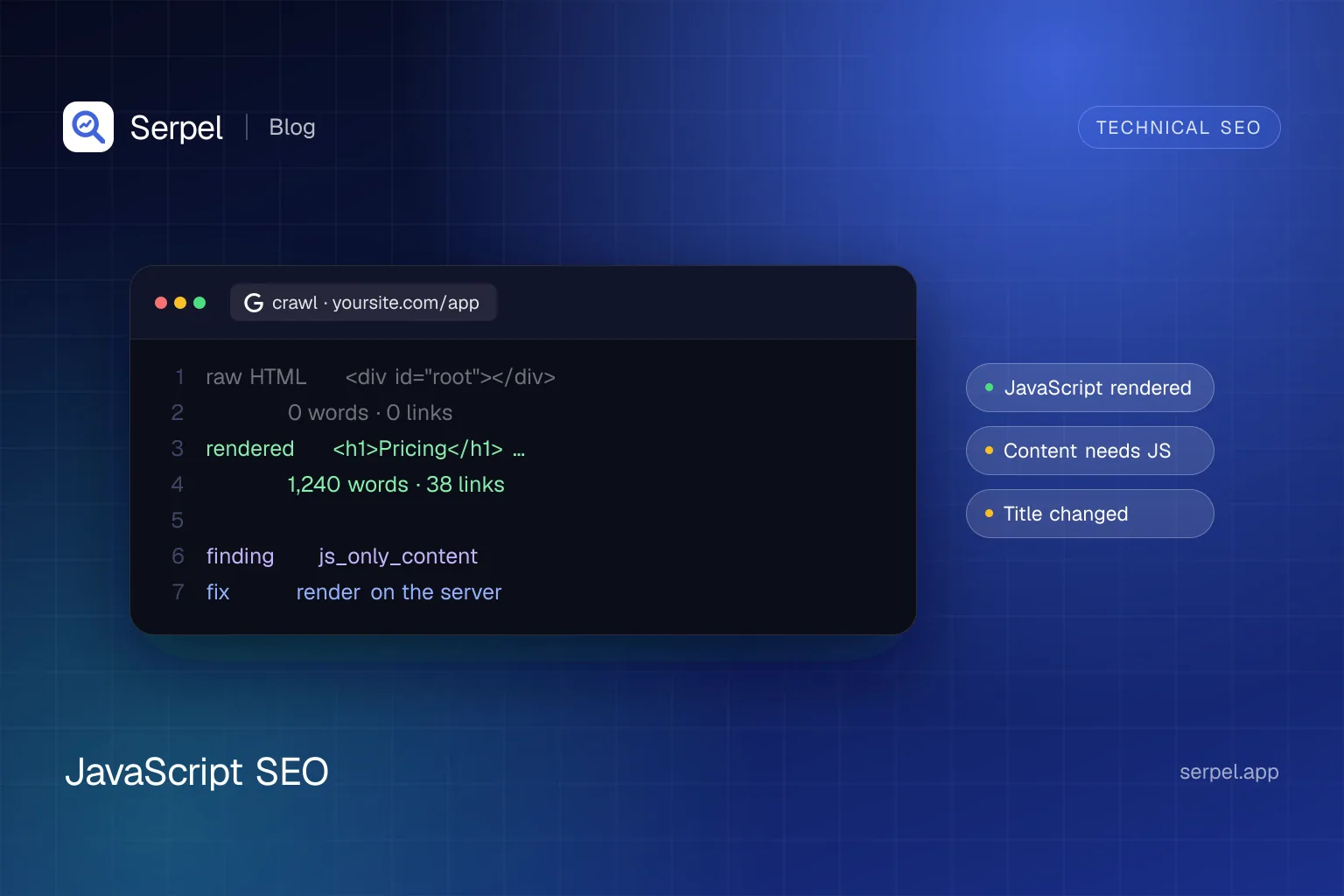
| Empty HTML shell | The delivered HTML holds a root <div> and scripts. Text and links appear only after rendering. | Server-render or prerender indexable routes and check them with curl. |
Links without href | Buttons, onclick handlers and framework attributes navigate in a browser. Google can’t reliably extract URLs from <a> elements without href. | Use <a href="/path"> for every internal link. |
| Fragment URLs | Routes such as #/products can’t be resolved reliably by Googlebot. | Use the History API with real paths. |
| Soft 404s in single-page apps | Unknown routes render a “not found” view but the server answers 200. | Redirect to a URL that returns 404 or add noindex to error views. See soft 404. |
| Lazy-loaded content | Google does not scroll or click, so content that loads only on interaction never appears. | Load content when it enters the viewport and give infinite scroll paginated URLs. |
| Blocked or oversized files | robots.txt blocks scripts, or a bundle is large. Googlebot fetches each resource separately and reads the first 2 MB of it. | Allow script and CSS paths. Split large bundles. |
| Metadata changed by script | Title, canonical or robots differ between the HTML and the rendered DOM. | Set them in the HTML. Never add noindex to the HTML if you want the page indexed. |
| Structured data from scripts | Google can read JSON-LD that JavaScript generates, but crawlers that do not render never see it. | Put JSON-LD in the HTML where you can and test the rendered result with the Rich Results Test or by pasting the rendered HTML into the free schema validator. |
| Stale cached scripts | Google’s renderer may ignore caching headers and run an old script. | Put a content hash in file names so a new release gets a new URL. |
How do you test what Google actually sees?
Test in three layers: the HTML your server sends, the DOM after rendering, and Google’s own view. A mismatch between the first two is the most common finding.
Look at the delivered HTML
Fetch the page without a browser and count the headings and links that are already there. If the counts are zero, everything depends on rendering.
Terminal curl -s https://example.com/pricing -o raw.html grep -o "<h1" raw.html | wc -l grep -o "<a [^>]*href=" raw.html | wc -lRender it in a real browser
Save this small Playwright script as
renderPage.mjs. It prints the full HTML after the scripts have run, including the doctype.renderPage.mjs import { chromium } from 'playwright' const browser = await chromium.launch() const page = await browser.newPage() await page.goto(process.argv[2], { waitUntil: 'networkidle' }) process.stdout.write(await page.content()) await browser.close()Compare the two
Run the same counts on the rendered file. Large differences in headings, links or words show what a non-rendering crawler misses.
Terminal node renderPage.mjs https://example.com/pricing > rendered.html grep -o "<h1" rendered.html | wc -l grep -o "<a [^>]*href=" rendered.html | wc -lAsk Google
The URL Inspection tool shows loaded resources, JavaScript console output and exceptions, and the rendered DOM, as described in Google’s debugging guide. Run a live test and open “View tested page” to see how Google renders the URL. The Rich Results Test can also confirm that the rendered HTML contains your content.
Read the comparison like an auditor. These differences matter most:
- Headings and text: a missing H1 or a large gap in word count means the main content depends on rendering.
- Links: internal links that appear only in the rendered file will not be followed by a crawler that does not render.
- Title, description and canonical: values that change after rendering tell different crawlers different stories.
- Robots directives: a
noindexornofollowthat appears or disappears after rendering is a bug that belongs in the HTML.
How does Serpel’s crawler render JavaScript pages?
A JavaScript SEO audit with Serpel’s site audit starts from the HTML the server delivers, then decides per page whether to render it. The project setting has three modes: “Automatic for empty pages” (the default), “Always render” and “Never render”. In automatic mode a page counts as a likely JavaScript shell when its delivered HTML has fewer than 50 words and shows a sign of a framework: a root container such as #__next, #__nuxt, #root or #app, Angular’s <app-root>, a <noscript> message about JavaScript, or several scripts with no links, no H1 and almost no text.
Pages that qualify are rendered in headless Chromium, using a mobile or desktop viewport that matches the crawl device. The renderer waits for the network to go idle and falls back to the load event if that times out. A crawl renders at most a fixed number of pages and reports when it reaches the limit. After rendering, the title, headings, links and the other checks run on the rendered page, and the crawl compares it with the raw HTML.
- Content only via JavaScript: the rendered page has at least 50 words and the raw HTML has less than half as many.
- Links only via JavaScript: at least 3 internal links exist only after rendering, and the raw HTML holds fewer than half of the rendered links.
- Metadata changed by JavaScript: title, description or H1 differ, or the canonical or robots directive differs between the two versions.
- Render problems: the page could not be rendered, or the browser console reported JavaScript errors.
- Rendering recommended: the page looks like an empty shell but was not rendered, because rendering is off, unavailable, over the limit or failed. Serpel reports this instead of false “missing title” or “missing H1” errors.
serpel projects update <project-id> --render-mode always
serpel crawl start --project <project-id> --wait
serpel audit issues --project <project-id> --category renderingWhat should you do first?
- Fetch the raw HTML of your main templates and check that the H1, text and navigation links are present.
- Replace click handlers that navigate with real
<a href>links. - Return real status codes:
404or410for missing content,301for moved content. - Server-render or prerender everything you want indexed.
- Make sure
robots.txtdoes not block your scripts and stylesheets. - Crawl the site with rendering on and review the pages where raw and rendered HTML differ.
Frequently asked questions
Does Google crawl and render JavaScript?
Yes. Googlebot queues pages that return a 200 status for rendering, a headless Chromium runs the JavaScript, and Google indexes the rendered HTML. Rendering can wait in a queue, and blocked resources or a noindex tag can stop it.
Is JavaScript bad for SEO?
Not by itself. Problems start when content, links or metadata exist only after rendering that a crawler does not perform or that fails. Server-render the essentials and use JavaScript for interactivity on top.
Do AI crawlers run JavaScript?
In Vercel’s December 2024 analysis, none of the major AI crawlers it examined rendered JavaScript. Behaviour can change, so keep key content in the HTML. Our AI crawlers guide covers which bots exist and how to control them.
Is dynamic rendering still recommended?
No. Google describes dynamic rendering as a workaround that adds complexity and resource costs, and recommends server-side rendering, static rendering or hydration instead.
How do I check whether Google can see my JavaScript content?
Open the URL Inspection tool in Search Console, run a live test and read the rendered DOM and console messages under “View tested page”. Compare it with the HTML your server sends, for example with curl.
Sources
- Google Search Central: Understand JavaScript SEO basics, accessed 10 Oct 2026
- Google Search Central: Fix Search-related JavaScript problems, accessed 10 Oct 2026
- Google Search Central: Make your links crawlable, accessed 10 Oct 2026
- Google Search Central: Fix lazy-loaded content, accessed 10 Oct 2026
- Google Search Central: Dynamic rendering as a workaround, accessed 10 Oct 2026
- Google Search Central: Googlebot, accessed 10 Oct 2026
- Search Console Help: Page indexing report, accessed 10 Oct 2026
- web.dev: Rendering on the web, accessed 10 Oct 2026
- Vercel: The rise of the AI crawler (17 December 2024), accessed 10 Oct 2026
- Next.js documentation: Caching and Incremental Static Regeneration, accessed 10 Oct 2026
- Playwright documentation: Page, accessed 10 Oct 2026
Related reading
- Site auditSerpel runs a technical SEO audit with 94 checks, JavaScript rendering and Core Web Vitals, and explains every issue and its fix.
- Soft 404 errors: what they are and how to fix themWhat is a soft 404? How Google defines it, what causes soft 404 errors, how Search Console reports them and how to fix each case, plus how to detect them.
- Next.js SEO: the App Router guide to metadata, sitemaps and renderingNext.js SEO best practices for the App Router: metadata, sitemaps, robots, JSON-LD, rendering and Core Web Vitals, with working code for Next.js 15 and 16.
- Core Web Vitals test: how to measure and fix LCP, INP and CLSRun a Core Web Vitals test with PageSpeed Insights, Search Console, Lighthouse, CrUX and Serpel, then fix LCP, INP and CLS with a table of causes.